
Install Frigate on Synology DS725+ with Google Coral TPU
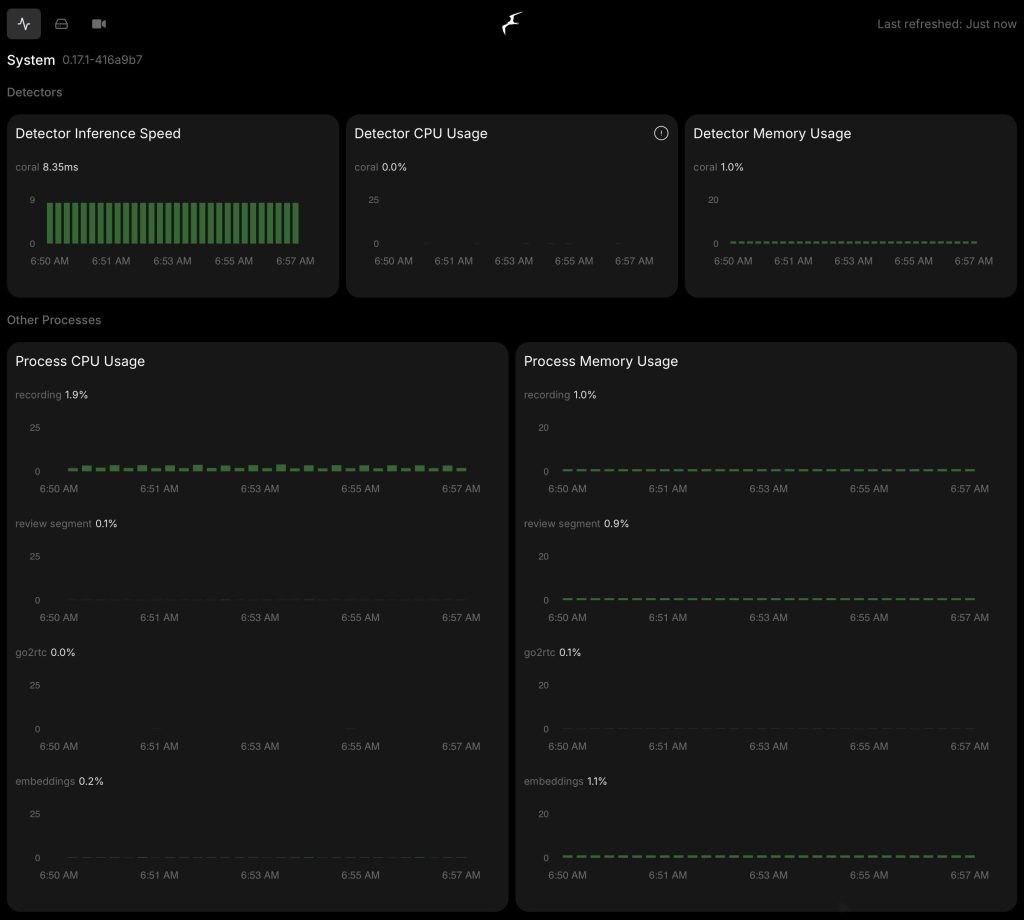
I have a Synology DS725+ and recently purchased an Annke FCD800 turret camera to view activity in my side yard. After configuring and testing the camera and using it to record locally to its SD Card and also evaluating Synology’s Surveillance Station, I came to the conclusion that both software solution were awful for detecting and recording motion and events.
I had heard of the Frigate camera software and investigated what was required to use it effectively. I quickly realized that the CPU in the Synology was not powerful enough for motion event detection and purchased a Google Coral USB-C TPU for $90 used to add to reduce CPU load.
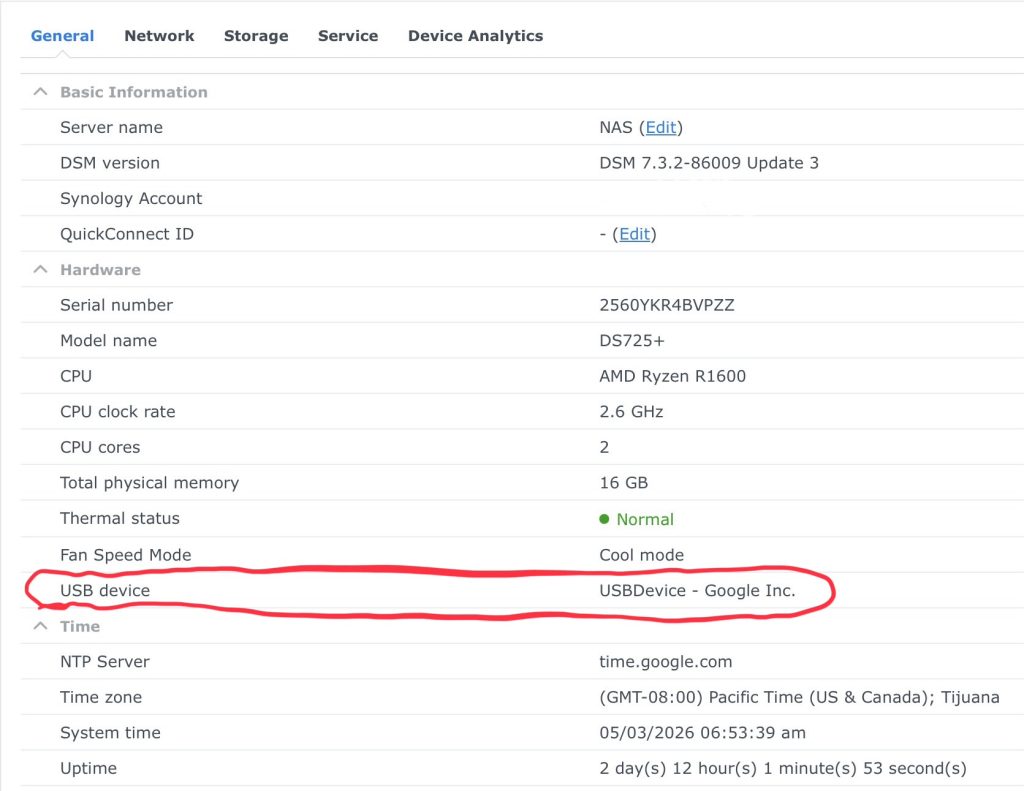
No software or drivers are needed or required to use the Google Coral TPU with the Synology. Just plug it into the front USB-A port (Do not use the back USB-C port) and it will show up in Synology > Control Panel > Info.
Installation
Create a directory name ‘frigate’ on your Synology in your Docker container folder. In this folder create two additional folders named ‘config’ and ‘media’. ‘Config’ is used to store the configuration and temporary files and ‘media’ is used to store permanent recordings. I have ‘config’ and my Docker directory residing on (2) nVme drives for speed and the ‘media’ directory on the (2) hard drives.
nVme Storage: /volume2/Containers/Frigate/config
Hard Drive: /volume1/Temp/Surveillance/media
Create YML Files
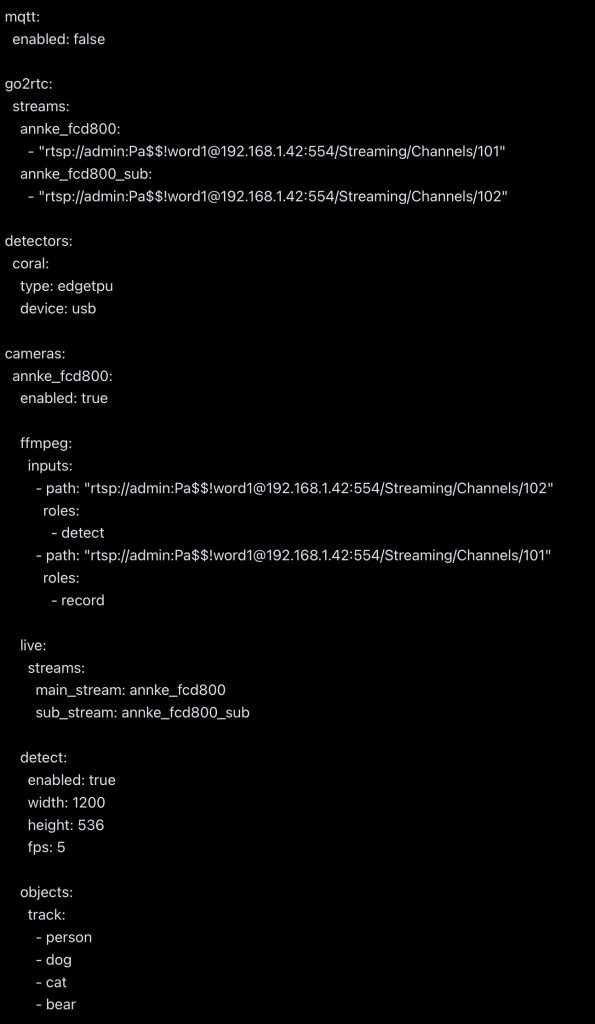
Create a file named ‘config.yml’ in the ‘/Containers/Frigate/config’ directory. Populate the file with info like the following replacing the camera IP/Password/model section with your relevent info.
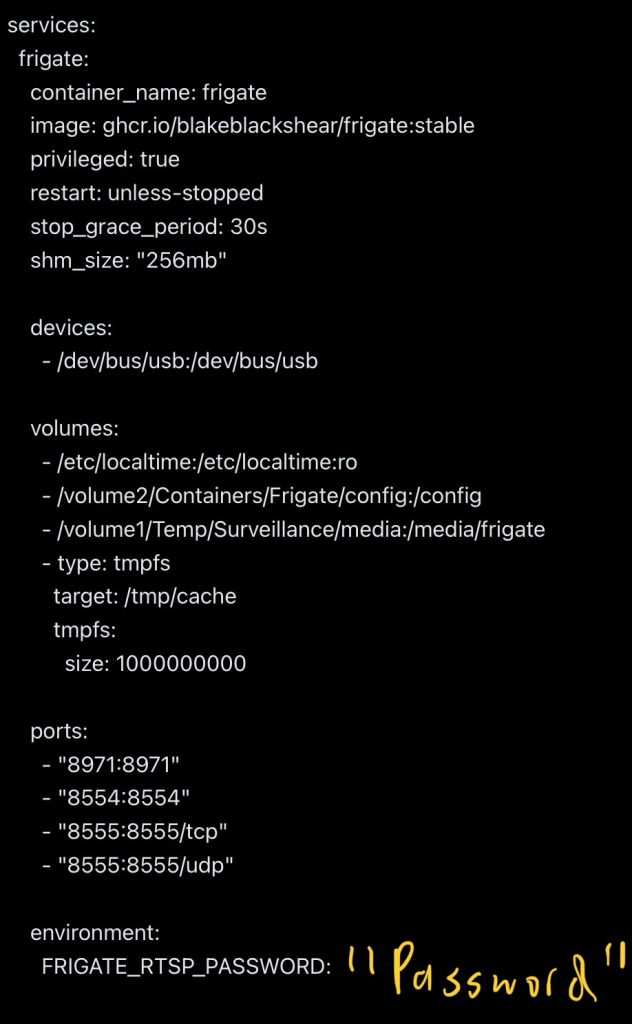
Create a file named ‘docker-compose.yml’ in the directory ‘/Containers/Frigate’. Populate the file with info like the following replacing the volume locations and password with your specific info.
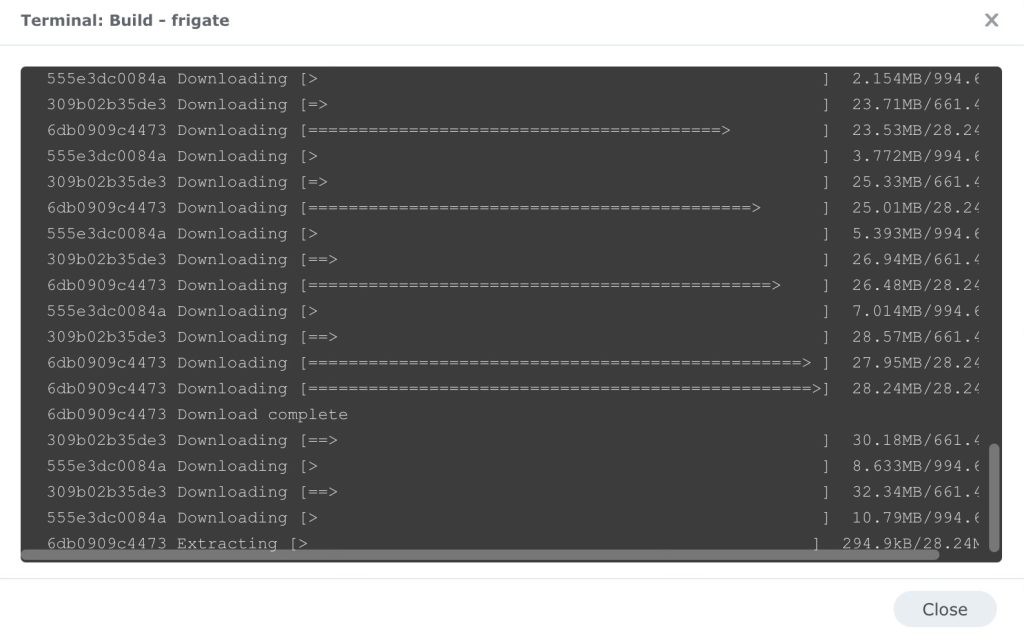
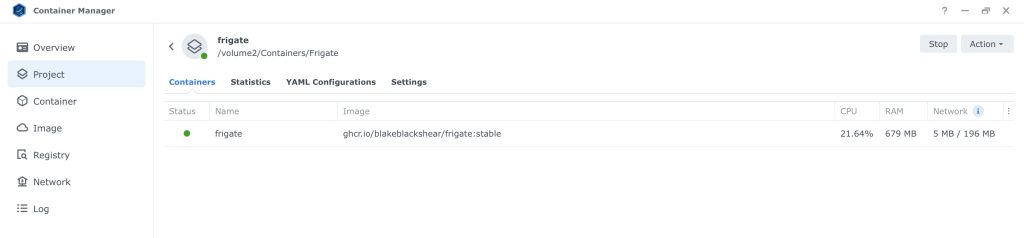
Create the Docker Container
In DSM:
- Open Container Manager
- Go to Project
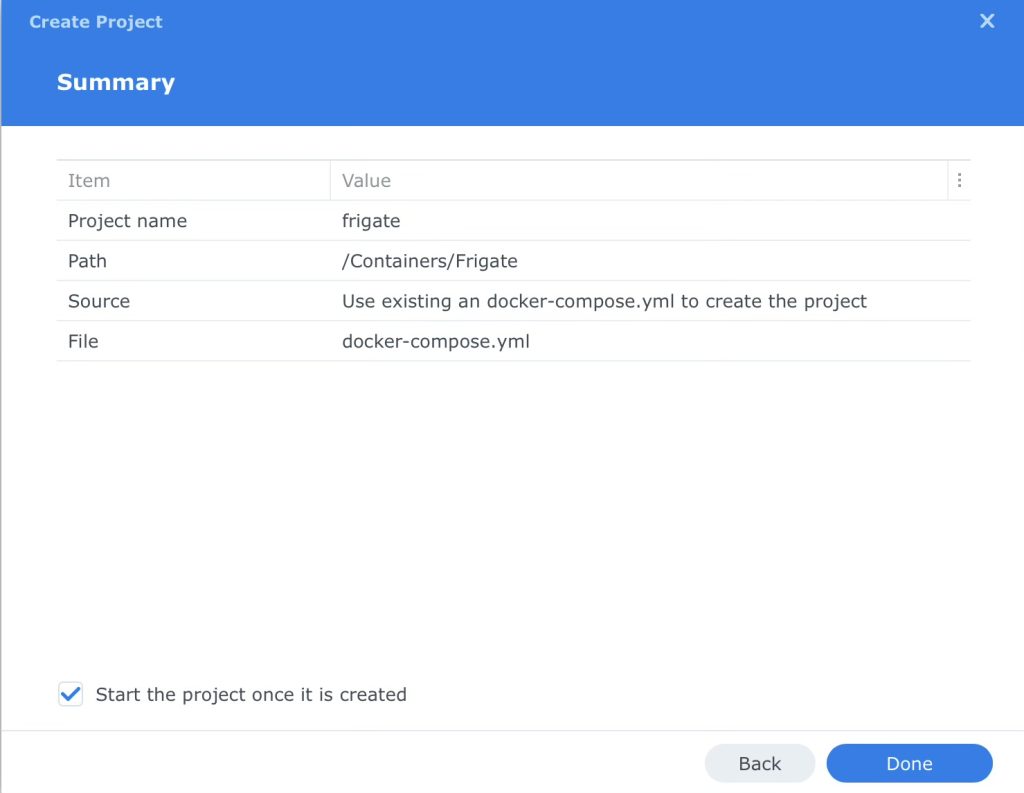
- Click Create
- Project Name ‘frigate’
- Select the location of the folder > /Containers/Frigate
- Select ‘Yes’ to use the existing docker-compose.yml
Obtain Admin Password
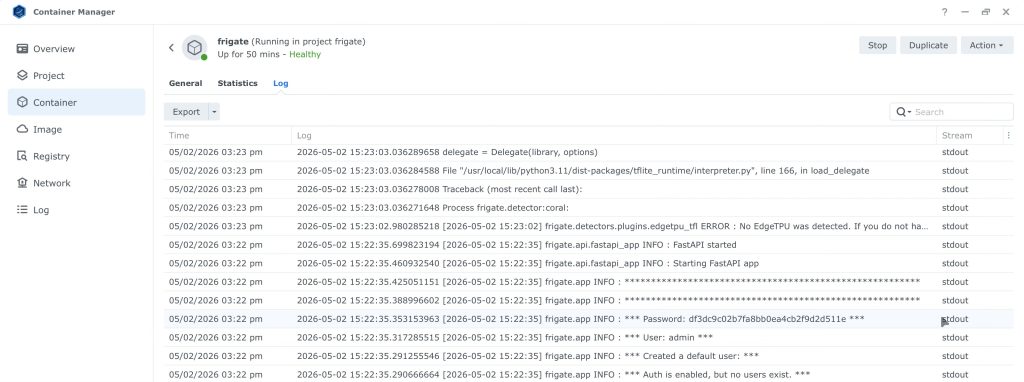
- Go to Container Manager > Containers > Frigate
- Open the container and click the Logs tab
- Look for the *** Password xxxxxx
- Wait 5 minutes after install to login then go to : https://192.168.1.51:8971
- Username is ‘admin’
- Password is the info in the log file. Login then go to setting and change the password.
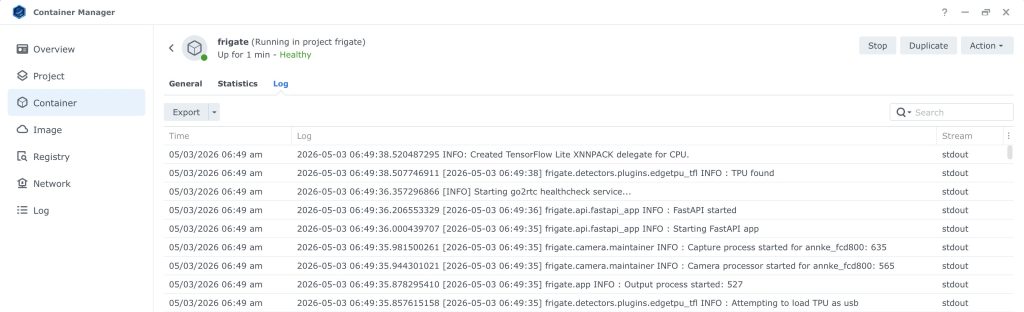
Verify Google Coral TPU is Active
Read on for how to configure the Coral TPU and Frigate to use a better detection model….