Configure Pi-Hole Settings
- Login to Pi-Hole and click settings on the left side
- Click System
- On The top right, click the green Basic button to show Expert settings
- On the bottom left side under Settings, click All Settings
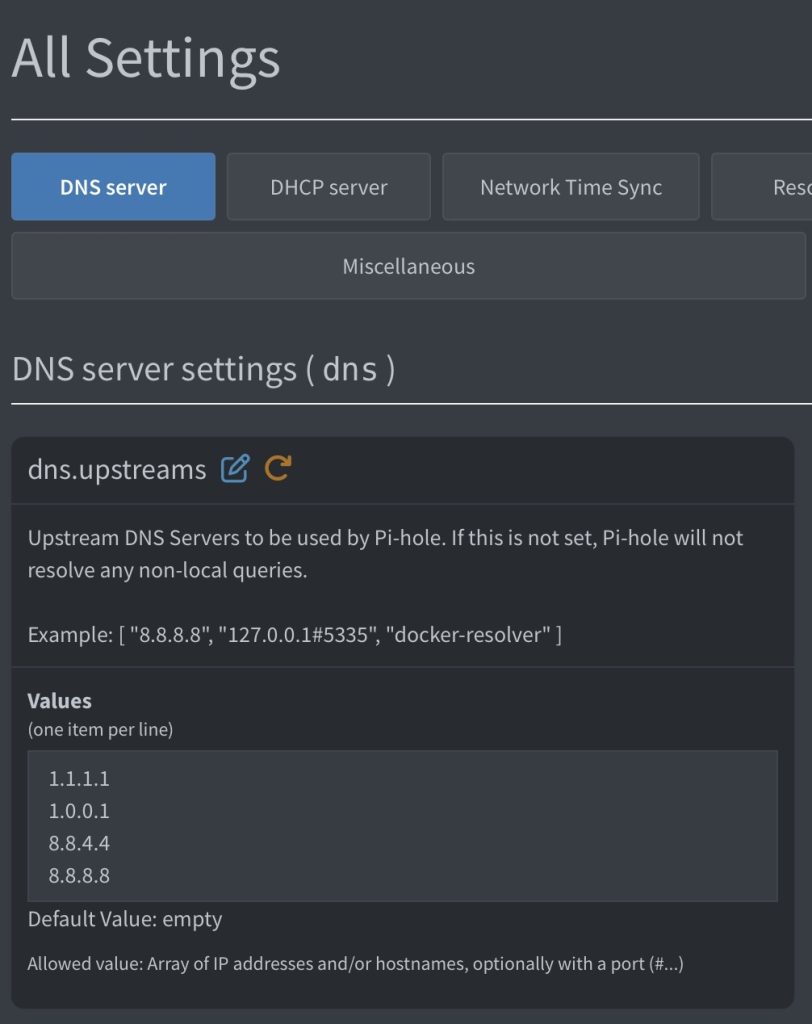
- Under dns.upstreams, add the public DNS server you want to use for name resolution. I use Cloudflare and Google DNS as shown below:
- Scroll down to the dns.hosts section
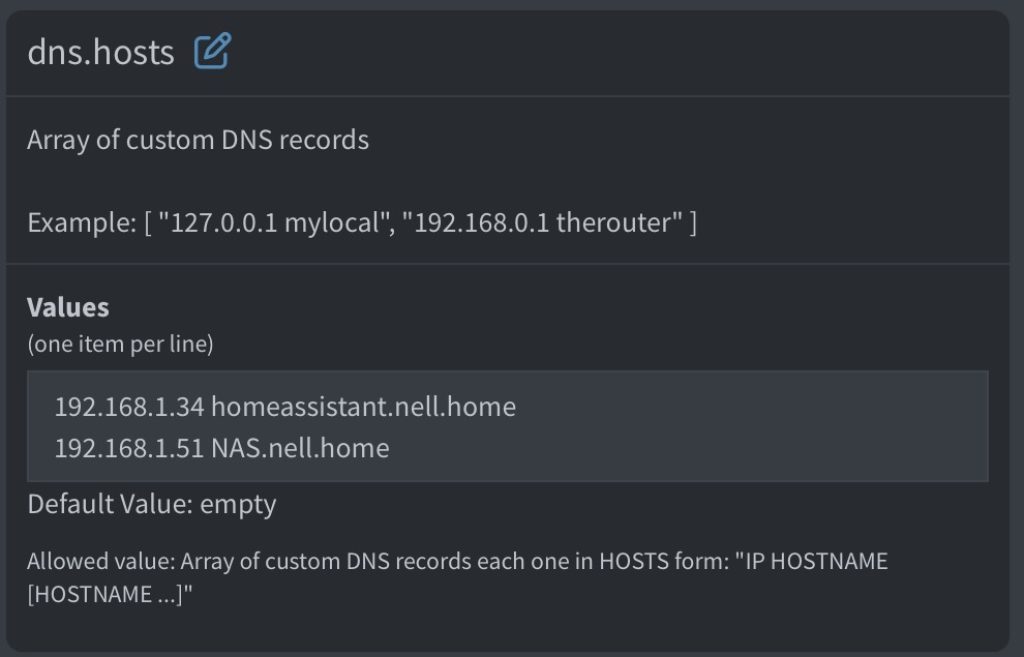
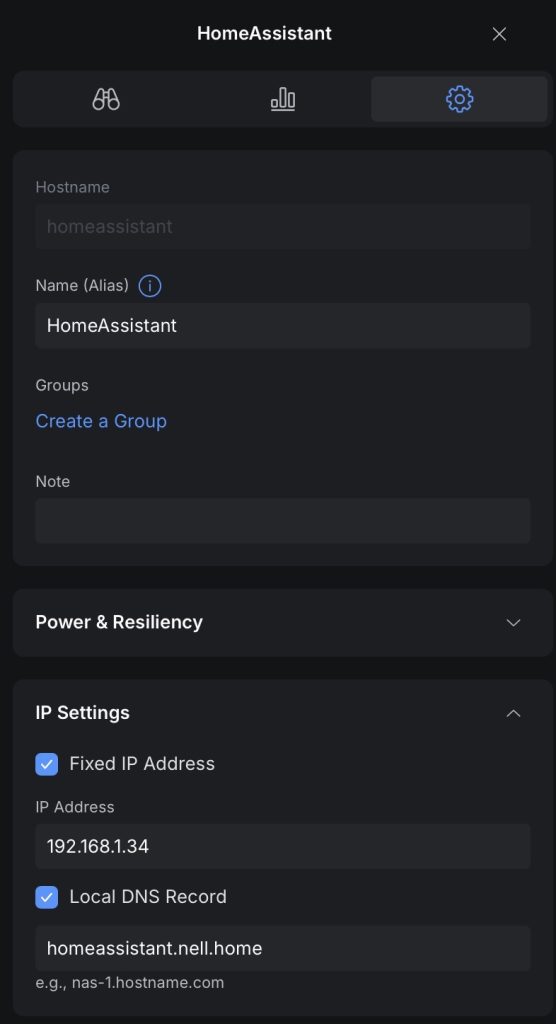
- Add any static IP Address to client names that are not resolvable internally for whatever reason. I added the Home Assistant VM and my NAS here. I don’t think either are needed as they were added for testing and resolve from my Unifi Cloud Gateway which provides DHCP and static IP and name mapping.
- In the dns.domainNeeded section, I have Enabled checked
- In the dns.expandHosts section, I have Enabled checked
- In the dns.listeningMode section, I have the radio button All selected
Conditional Forwarding
For Pi-Hole to show client names in additional to IP addresses and MAC addresses, it is required to setup conditional forwarding so Pi-Hole will forward internal requests to your router.
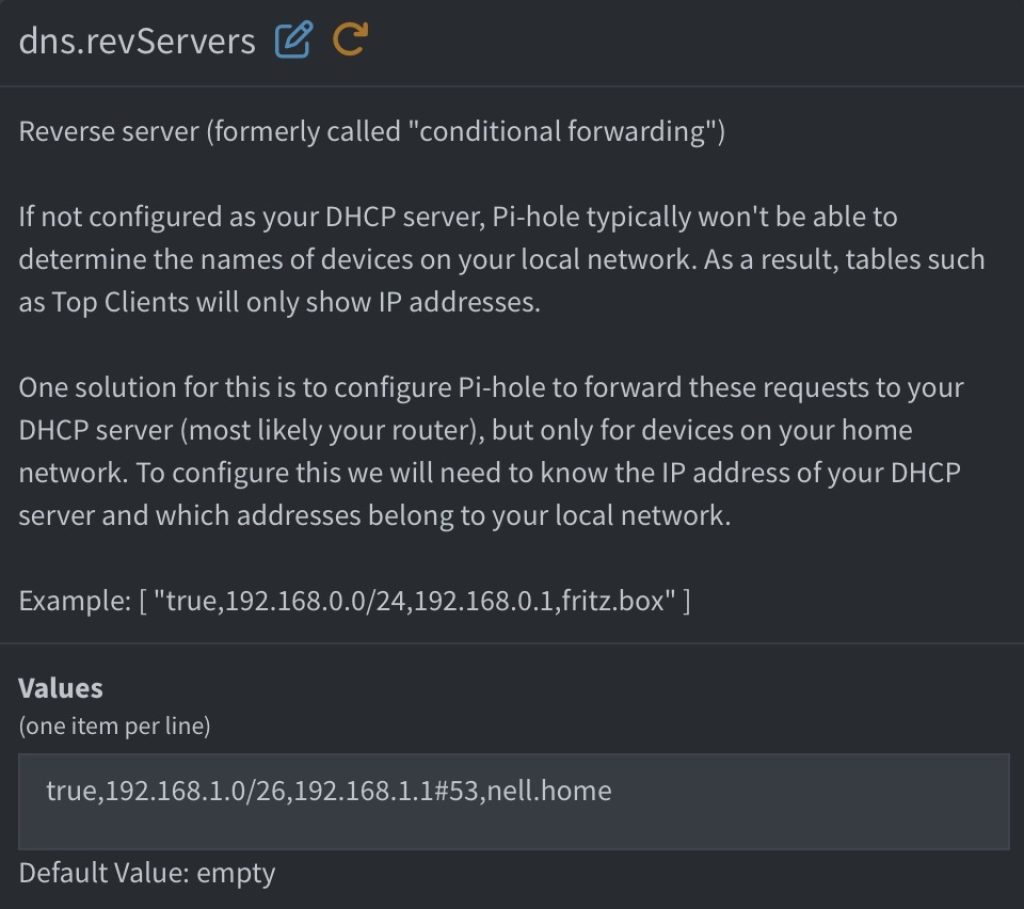
- In the dns.revServers section, add your DHCP IP range and your DHCP server IP address and internal domain name. Your DHCP server IP is probably your router and is my Unifi Cloud Gateway
- true,192.168.1.0/26,192.168.1.1#53,nell.home
- I use ‘nell.home’ as *.home domain names are reserved for residential use and not forwarded outside of the private LAN.
Additional Settings
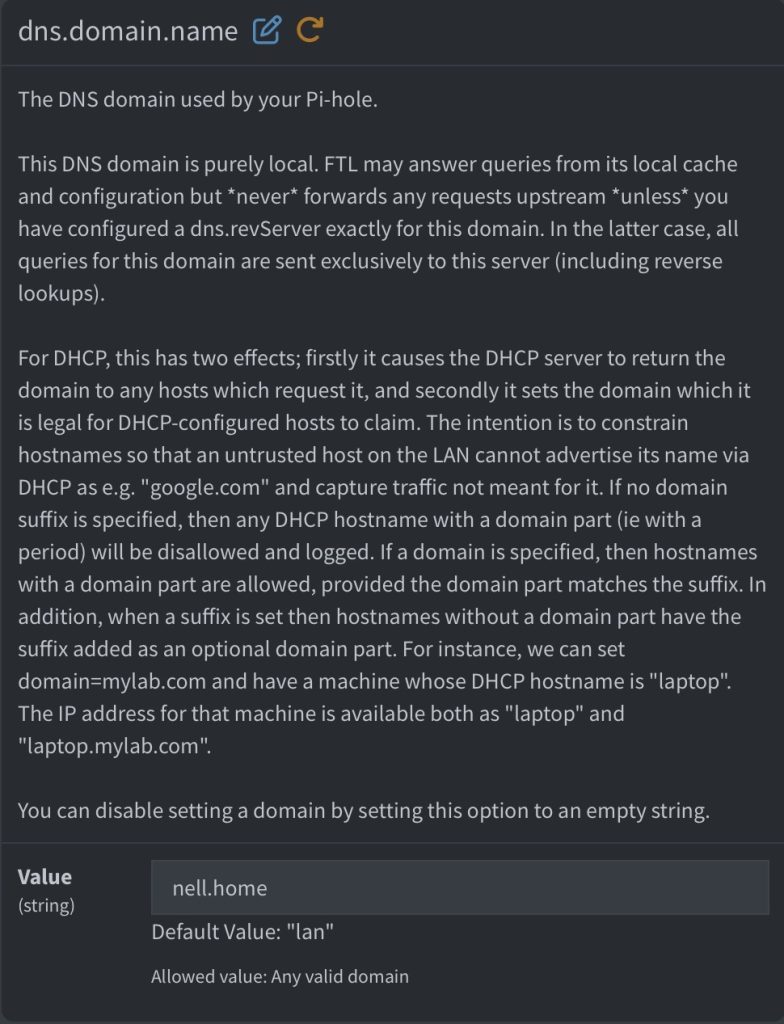
- In the dns.domain.name section, enter your internal domain name
- In the dns.domain.local section, click Enabled
- In the dns.reply.host.force4 section, click Enabled
- In the dns.reply.host.ipv4 section, enter the IP address of the Pi-Hole
Filter Lists
- Click on Lists on the left sidebar
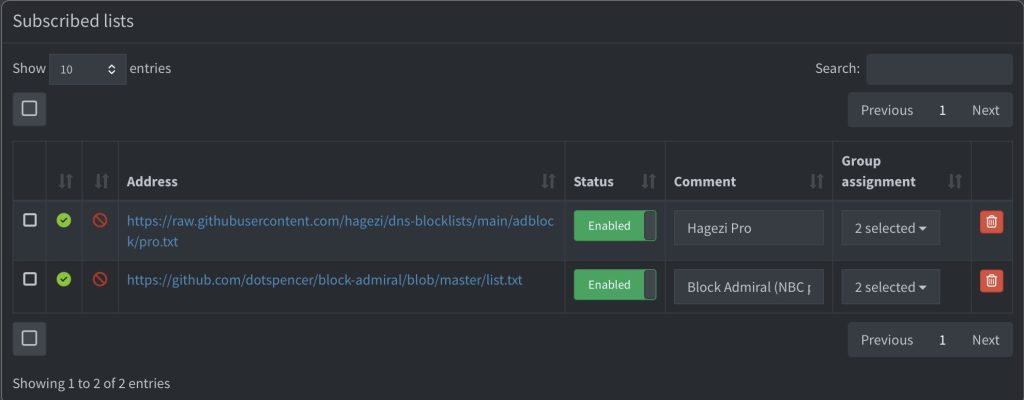
- This section is where you add lists of domains to block for ads or other reasons. Do not add to many here as more is not better. I use the following two lists which work well for most of my ad blocking needs. Anything else I add manually or modify as needed.
Hagezi Pro: https://raw.githubusercontent.com/hagezi/dns-blocklists/main/adblock/pro.txt
Block Admiral: https://github.com/dotspencer/block-admiral/blob/master/list.txt
Groups
- Click on Groups on the left sidebar
I use groups to be able to segment devices to allow certain ones to be able to access social networks while all others are still blocked from access. A 3rd group is used to quickly add a device to be able to bypass all ad blocking without having to disable ad blocking entirely.
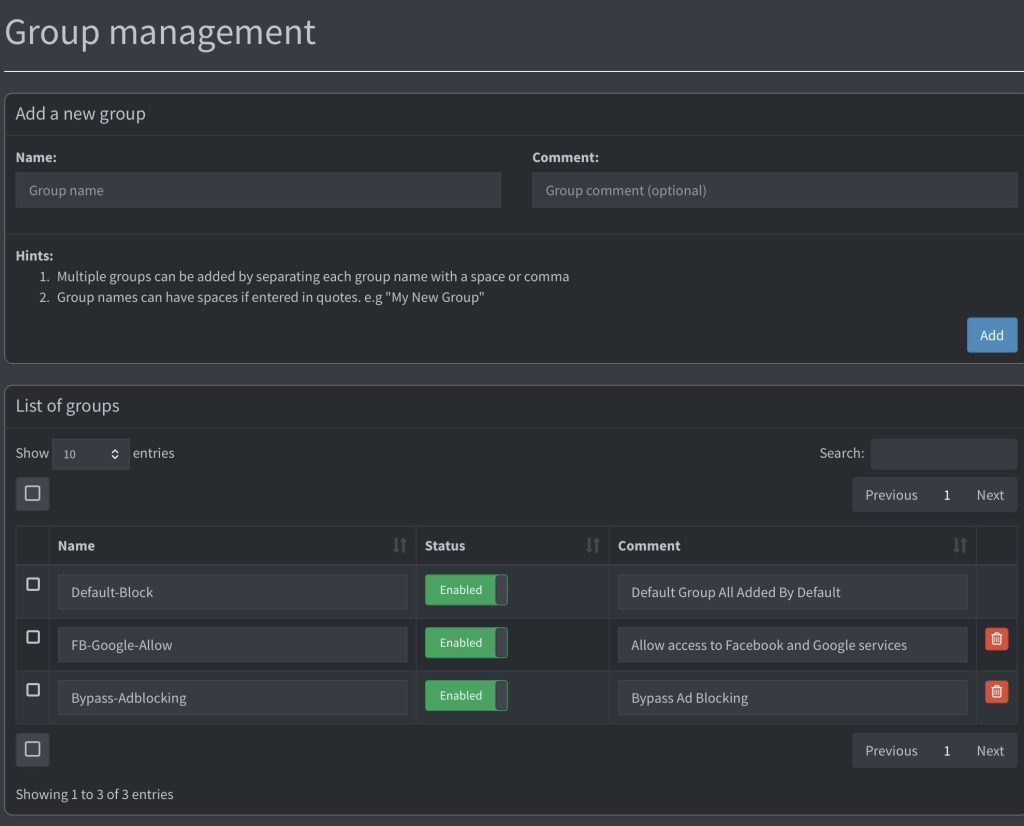
Client Group Management
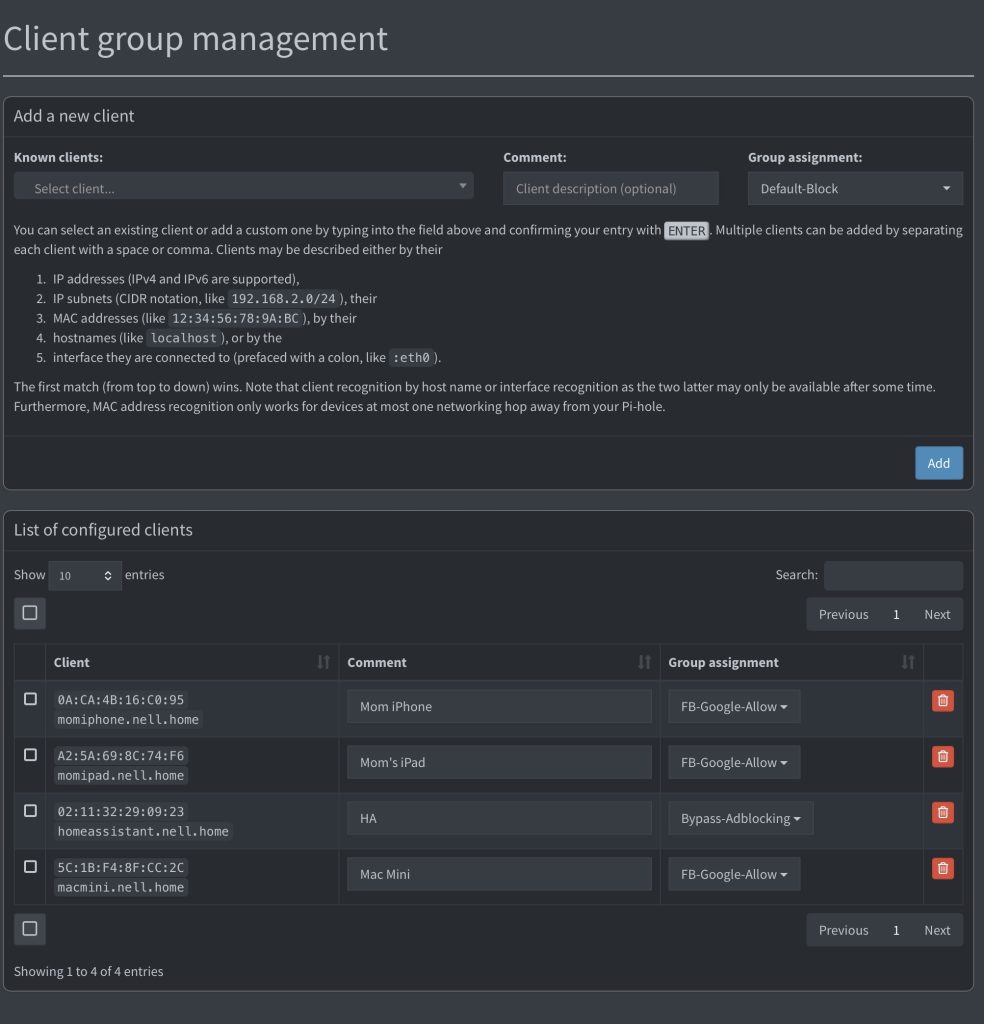
- Click on Clients on the left sidebar
In this section, clients are added to the groups created previously. Here I have an iPad and iPhone added to a group which allows access to Facebook and Google services.
Home Router Settings
- Make sure you have a static IP address for the Pi-Hole and NOT DHCP!
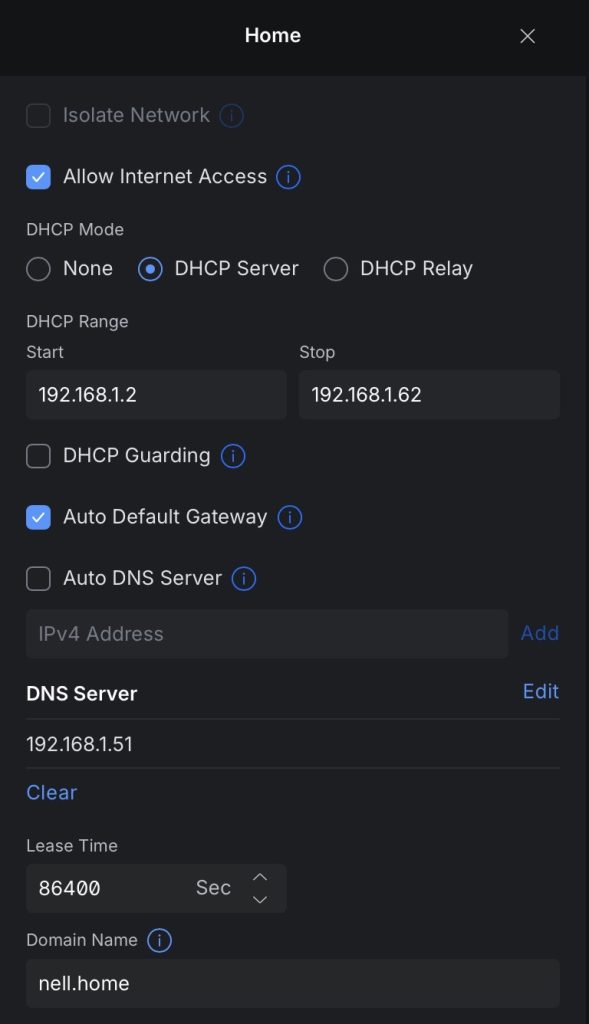
- Change DHCP on your router to update the DNS IP from dynamic to using the Pi-Hole.
- Once changed, any client will need to either be rebooted or have their DHCP IP address lease renewed before they will be updated with the new DNS Pi-Hole IP address. Until then, existing clients will continue to use the existing DNS setting that they have cached.